The TIWFile is the IntraWeb component that adds File Upload capabilities to your application.
SIGNATURE=IWCompFile.TIWFile
ETYPE=Class
Declaration:
Delphi: |
public TIWFile = class(TIWCustomControl); |
C++: |
public: class TIWFile : public TIWCustomControl; |
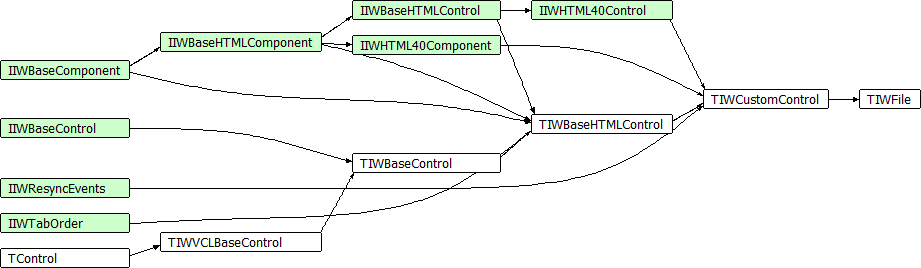
Unit: IWCompFile.pas
Description: This is class IWCompFile.TIWFile.
How to use the TIWFile component
Adding a TIWFile component to your IW form is not enough to start uploading files. For this to happen you need to have a control in your IW Form that is capable of triggering a full submit event, like a TIWButton. You need to add code to the TButton's OnClick event to save the file to another file on disk or to a stream. The Filename property contains only the name of the file without the full path file. This is a security restriction on Client's side as the Browser does not send local information to the requester.
Make sure you set the LockOnSubmit property to False in the IW form when you use a TIWFile.
procedure TfrmUpload.UploadButtonClick(Sender: TObject);
var
xDir: string;
begin
xDir := URLPathToFilePath(IncludeTrailingBackslash(IWServerController.ContentPath), GetTopFolder);
IWFile.SaveToFile(xDir + IWFile.Filename);
MessageLabel.Visible := True;
MessageLabel.Caption := Format('New file "%s" uploaded to "%s"', [IWFile.Filename, xDir])
end;
Note: The code above was extracted from the FileManager demo available in the IntraWeb demos
If the user has selected a file using the TIWFile options, the file will be uploaded to the server side when the user triggers a full submit event. In general, you will use a TIWButton to trigger the file upload and to save the file on server side, but you must be aware that if you have other control that can trigger a full submit event, like a TIWComboBox, your application needs to be prepared for that.